
See all People First Bank App
and Digital Wallet payments FAQs.

What is Digital Banking?
Digital Banking is how we refer to both the People First Bank App and Online Banking. By registering for one, you can unlock 24/7 access to both for banking any time, from any device.
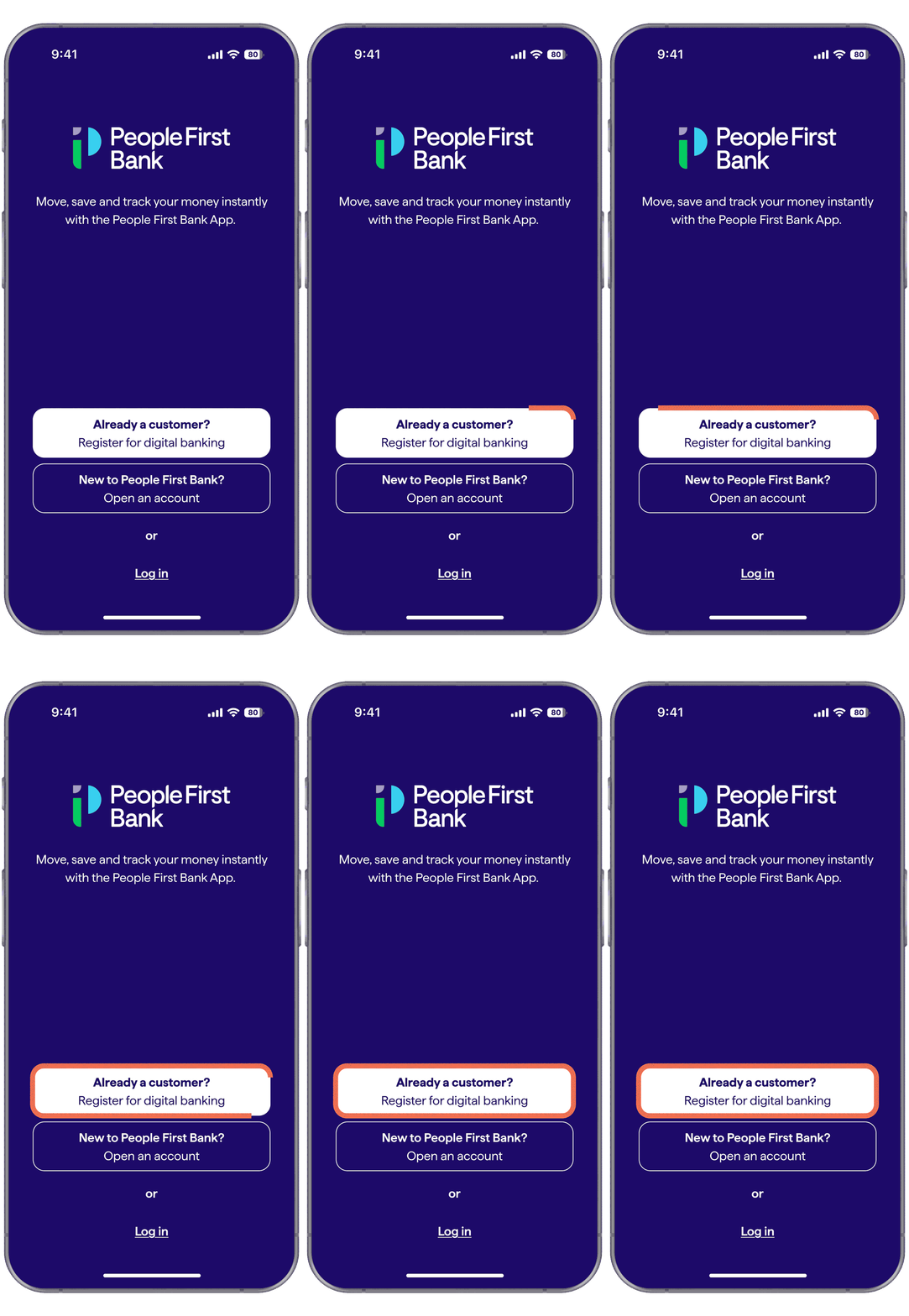
Register today in minutes
If you've joined People First Bank but haven't yet registered for Digital Banking, the People First Bank App is the fastest way to get started.
If you're not a customer yet, you can register automatically as part of opening a new account.
1. Get the App
Download the App from your preferred app store below and follow the prompts. Our App is compatible with Android version 8+ and iPhone iOS 15+.


2. Register your account
Choose 'Already a customer? Register for Digital Banking' to create a new password and register your device.
Need a hand?
Check out our step-by-step guides to get you set up.
- If you're wanting to join us as a new customer, click here
- If you're transitioning from People's Choice to People First Bank's Digital Banking, click here
Registration FAQs
Yes – as the People First Bank App and Online Banking require all customers to register for the first time, even as an existing People’s Choice customer.
This means setting up new login credentials and security preferences, as your previous password won’t work. You can register in minutes by downloading the People First Bank App, clicking the ‘Already a customer? Register for Digital Banking’ button and following the prompts.
A customer can register with many devices but there can only be one customer registered to a single device.
The People First Bank App is compatible with the following devices:
- mobile phones using Android version 8.0 and above
- Apple iPhone iOS version 15.0 and above.
Using the People First Bank App
With our App you can:
- View your transaction history and access eStatements.
- Transfer money to other financial institutions via Osko.
- Make a payment to anyone using their PayID (mobile, email or BSB/Account). For more information, visit the Fast Payment FAQ’s.
- Pay a bill using BPAY®.
- View and edit your scheduled transfers.
- Share your account details with your friends and family members easily via social platforms.
- Personalise your account names.
- Locate your nearest branch or contact us.
- Create your own PayID for Fast Payments.
- Message us directly to provide feedback or ask a question
To change your App Passcode simply follow these steps:
- Sign in to your People First Bank App
- Navigate to 'Profile and security' (under your name in the top-left corner)
- Select ‘Change Passcode’
- Enter your current Passcode
- Enter your new preferred Passcode
- Tap ‘Done’
To find your bank account details select your account from the Dashboard or ‘Accounts’ list, then tap ‘Details’ to view your account’s name, BSB and account number.
Yes, there are daily transfer limits for transferring money to other People First Bank customers, other financial institutions or paying bills using BPAY®. For more information see our Daily Limits document.
To enable Face ID or facial recognition for the People First Bank App, you must have your face registered in the device settings. If your face is not registered within your mobile phone device settings, the Face ID menu option will not available in your People First Bank App. Ensure only your face is registered on your device.
You can enable or disable Face ID at any time in the App. To do this, click on your name located on the top left corner of the screen and navigate to ‘Profile and security’.
You can update to the latest Android app from the Google Play Store and the iOS (Apple) app from the App Store on your smartphone. Simply open your App Store, find the People First Bank App, and select ‘Update’. If the update option isn't available, this may be because you are already using the latest version of the App.
Tap ‘Payments’ from the Navigation bar at the bottom of the page then select BPAY and select a BPAY from your saved favourites. To enter a new biller’s details, tap the + icon at the top right of the BPAY screen and then enter the biller details.
If you travel outside Australia, you may still have access to our People First Bank App service. You should check with your telephone communications provider whether your mobile phone will be able to use relevant networks in those countries in which you are traveling. You might have extra charges for having your mobile on international roaming from your telephone communications provider.
Access to Digital Banking services (this includes Online Banking, the People First Bank App and our website) may be restricted in sanctioned and high-risk countries. Before you travel, make sure you have alternative ways to manage your accounts if online access becomes unavailable.
accounts
Set up your Digital Wallet
Left your card at home? No problem. Get ready to tap and pay with your mobile, using Apple Pay, Google Pay™ or Samsung Pay.

How-to videos and step-by-step guides
Click the links below to open a short how-to video, or to view the same how-to steps as a written guide (PDF format).
More helpful guides and support
email
Contact us with Messages
Use the Messages feature to get in touch with us via the People First Bank App or Online Banking. Go to the main menu, choose More and Messages to:
- ask a question or request support
- view and respond to mail from us.
Check out our How-to video or Contact us securely guide to get started.

check
Online Banking
Securely bank from your browser anytime, anywhere with Online Banking.

Using Online Banking
See all Online Banking FAQs.
Online Banking offers you access to your accounts online, 24 hours a day. It allows you to choose your own banking hours to carry out the following features;
- Open savings and transaction accounts
- Activate and lock your card
- Add your card to your Digital Wallet
- View your account balances and download eStatements
- Schedule payments
- View transaction history
- View uncleared transactions such as pending debits and cheque deposit holds
- Make payments using BPAY®
- Transfer funds to accounts within Australia using Fast Payments
- Manage your personal details (home address, phone numbers and email)
- Access card merchant control
People First Bank uses industry-standard encryption to help you to stay safe while you’re online banking with us. See Digital Banking security for more information and tips to stay safe online.
You can reset your password via your account login screen. Simply select ‘Forgot password’. You will still need to have your member number on hand to reset your password.
If you still require assistance, call us on 13 11 82 or visit any branch. For security reasons, our Customer Hub team will do an identity check before releasing your new password. At a branch, you’ll need to present photo identification before a new password is released.
Yes, once you register for Online Banking you will automatically be able to view and receive eStatements.
The first screen you will see after logging in to Online Banking is the ‘Dashboard ’ page. This screen allows you to view your accounts and account balances at a glance. You can ‘Favourite’ an account so that it always appears at the top of the dashboard screen. To perform a quick transfer or payment, click on the double downward arrow located next to your account balances.
You can change the name of your accounts by selecting ‘Accounts’ from the main menu, followed by ‘Manage Accounts’. Select the pencil icon next to the Account number you want to change and overtype the personalised name into the editable field Click the ‘tick’ icon to save. Only eligible account types can be updated.
A transaction is considered an uncleared transaction when the amount is not available for use. The transaction is reflected in the 'Available Balance' section of an account. For more information refer to our Accounts & Access Facilities Terms & Conditions.
If you can’t remember your password you can reset your password via your account login screen. Simply select ‘Having problems?’ and ‘Forgot password’. You will still need to have your member number on hand to reset your password.
If you still require assistance you can visit one of our branches. For security reasons you'll need to present photo identification before a new password is released.
For security reasons, if you enter your password incorrectly three times you’ll be locked out of Online Banking. This is to protect you against an unauthorised person trying to access your bank account.
You can unlock your account by:
- Calling us on 13 11 82. For security reasons our we’ll do an identity check before releasing your new password.
- Visiting one of our branches. For security reasons you’ll need to present photo identification before a new password is released.
People First Bank App and Online Banking require all customers to register for the first time, which means setting up new login credentials. Your People’s Choice login details (member number and password) won’t work.
Digital Banking security
Learn about how People First Bank protects your banking information online and find resources and tips to protect yourself from fraud or scams.

security
Digital Banking security
Find out more about how we keep your information safe, and how you can protect yourself online.
Learn more
chevron_right

lock
Identity security
Tips to help minimise the chances of identity theft.
Learn more
chevron_right

my-cards
Card security
Reduce the risk of card fraud with these helpful hints.
Learn more
chevron_right
Need some help? We've got you covered.
Get in touch with us and we can help you get the answers you need.
lock
Message us securely
Log into Digital Banking to send us a secure message by clicking the link below, or by using your People First Bank App.
location_on
Visit us in person
Find your nearest branch, lending and advice centre, or home loan adviser.
